Minecraft Controller Setup Guide For PC, Consoles & Mobiles
Minecraft APK is a fun way to enjoy creative gameplay with extra features. It’s great for building, exploring, and relaxing in your free time. However, using a controller to play Minecraft provides a smoother and more comfortable experience, particularly during lengthy game sessions.
Minecraft supports a variety of controller types, making movement, combat, and building easier and more enjoyable whether you play on a PC, console, or mobile device. This comprehensive guide will show you how to set up a controller in Minecraft on PC, consoles, and mobile, including supported controllers, button mappings, customization options, troubleshooting, and expert tips.
Why Use a Controller in Minecraft?
Using a controller in Minecraft provides several benefits:
Supported Controllers for Minecraft
| Controller Type | Supported Platforms |
|---|---|
| Xbox Controller | PC, Xbox, Android, iOS |
| PlayStation Controller (PS4/PS5) | PC, PlayStation, Android, iOS |
| Bluetooth Gamepad | Android, iOS |
| USB Controller | PC, Android |
| Nintendo Pro Controller | PC, Nintendo Switch |
How to Play Minecraft with Mouse & Keyboard?
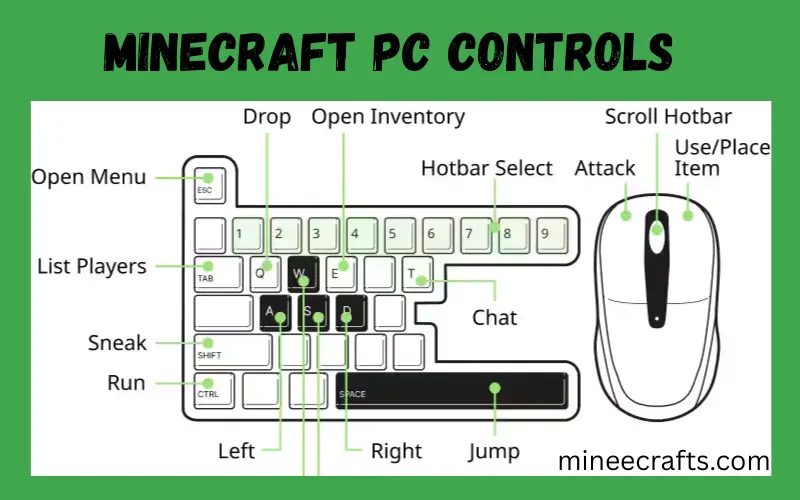
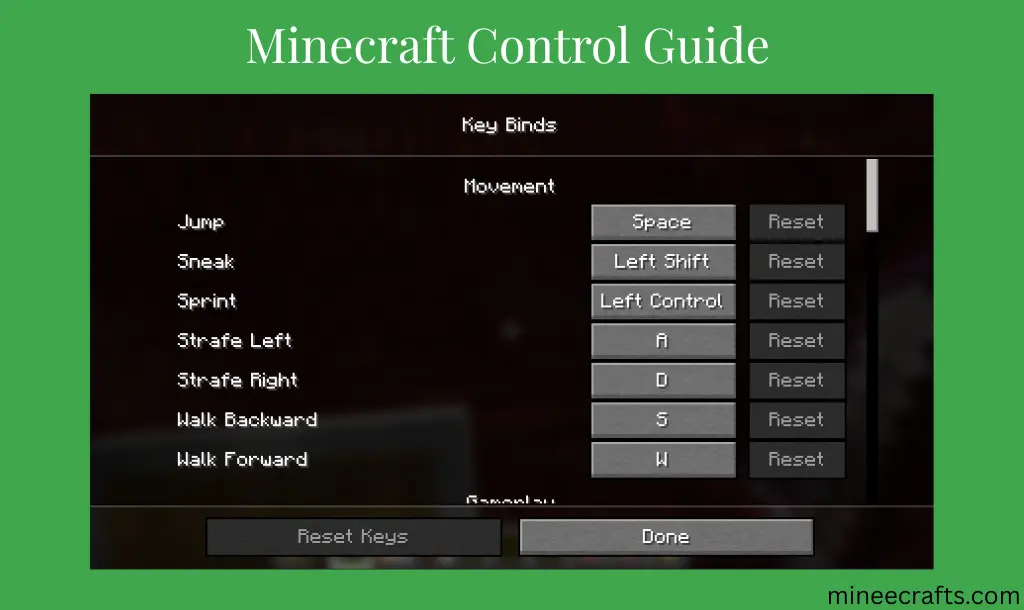
| Action | Keyboard Key |
| Jump | Spacebar |
| Sprint | Ctrl |
| Move Left | A |
| Move Right | D |
| Move Forward | W |
| Move Backward | S |
| Chat | T |
| Inventory | E |
| Crouch/Sneak | Shift |
| Hotbar (Slot 1–9) | 1 to 9 |
| Drop Item | Q |
Mouse controls:
- Left-clicking allows players to break blocks and attack mobs.
- A right click allows players to place blocks and use items/resources.
- The scrolling mouse’s Wheel allows players to change Hotbar items.
- Players can use the mouse to look around and change views.
Minecraft Controller Setup on PC
Minecraft Bedrock Edition (Windows 10/11)
Minecraft Bedrock Edition has native controller support.
Steps:
- Connect the controller to the PC via USB or Bluetooth.
- Start Minecraft Bedrock Edition.
- Navigate to Settings and select Controls.
- Choose Controller.
- If necessary, adjust the sensitivity and button layout.
Minecraft Java Edition (PC)
Minecraft Java Edition requires additional setup because it does not support controllers by default.
Tools Required:
- Steam (Big Picture Mode)
- JoyToKey
- DS4Windows (for PlayStation controllers)
Set up via Steam:
- Add Minecraft Java as a Non-Steam Game
- Open Steam Big Picture Mode
- Enable Controller Configuration
- Map keyboard keys to controller buttons
- Launch Minecraft through Steam
Minecraft Controller Setup on Consoles
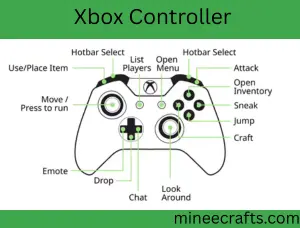
Xbox (One / Series X|S)
- The controller works automatically.
- No setup is required.
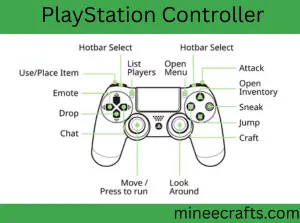
PlayStation (PS4 / PS5)
- Native controller support
- Button remapping is available in settings
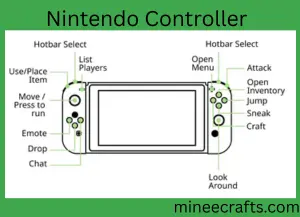
Nintendo Switch
- Joy-Cons and Pro Controllers supported
- Works out of the box
Minecraft Controller Setup on Mobile Devices
Android Devices
Minecraft on Android supports Bluetooth controllers.
Steps:
- Turn on the controller’s Bluetooth mode.
- Open Android Settings and select Bluetooth.
- Pair the controller to the Android.
- Launch Minecraft on the Android device.
- Select Controls and then Controller from the Minecraft settings menu.
iOS (iPhone & iPad)
Supported controllers include:
- Xbox Wireless Controller
- PlayStation DualShock/DualSense
Steps:
- Turn on Bluetooth on iOS.
- Pair the controller to the Bluetooth.
- Launch Minecraft
- The controller will be automatically detected.
Default Minecraft Controller Button Mapping
Standard Xbox-Style Layout
| Button | Action |
|---|---|
| Left Stick | Move character |
| Right Stick | Camera control |
| A/X | Jump |
| RT / R2 | Attack/Mine |
| LT / L2 | Place block |
| Y / Triangle | Open inventory |
| LB / L1 | Cycle hotbar left |
| RB / R1 | Cycle hotbar right |
| Start | Pause menu |
| D-Pad | Hotbar selection |
How to Customize Controller Controls
Minecraft allows full controller remapping on supported platforms.
Steps:
Pro Tips for Better Minecraft Control Setup
PvP Pro Tips:
- Bind sneak to a key like “C” or “Caps Lock” to react faster.
- Place hotbar items (sword, pickaxe, bow) in 1-3 slots.
- To improve your aim, reduce the mouse sensitivity slightly.
For Creators & Builders
- Auto Jump should be turned off because it affects block placement.
- For a quick third-person view, bind F5 to a closer key.
- For maximum robustness, use Creative Hotbar Save/Load (Ctrl + number).
- Xbox controllers offer the best compatibility.
- Lower sensitivity increases building accuracy.
- Save different control profiles.
- When using a controller on mobile devices, disable touch controls.
- Before major updates, back up your control settings.
Common Controller Issues & Fixes
Controller Not Detected
- Reconnect Bluetooth
- Restart Minecraft
- Try the USB connection
Input Lag or Delay
- Reduce Bluetooth interference
- Update controller firmware
- Adjust in-game sensitivity
Java Edition Controller Not Working
- Verify key mapping software
- Run Steam as administrator
- Re-map keyboard bindings correctly
FAQs – Minecraft Controller Guide
Can I use a PlayStation controller on Android?
Yes, compatible Android versions allow you to use a PlayStation via Bluetooth.
Is a controller better than a keyboard and mouse?
It depends on preference. Controllers are more comfortable, while keyboard and mouse provide greater accuracy.
Can I remap controller buttons in Minecraft?
Yes, you can easily remap the controller because Minecraft supports full control customization.
Does Minecraft support controllers on PC?
Yes, Minecraft supports controllers on PC for both Bedrock and Java Edition. But Java Edition requires third-party tools.
Conclusion
The use of a Minecraft controller improves comfort, movement, and overall gameplay on PC, consoles, and mobile devices. Controllers, when properly set up and customized, provide a smooth and enjoyable experience for both new and experienced players. Whether you prefer casual exploration or intense gameplay, a properly configured controller can greatly enhance your Minecraft experience.