How to Back Up Your Minecraft APK Account & Worlds
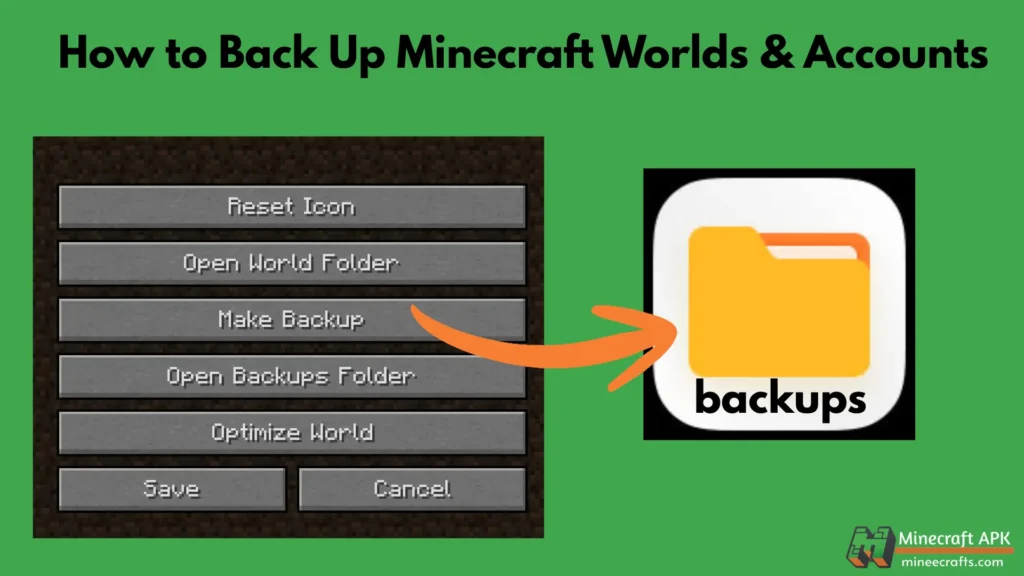
Minecraft is a game in which players create and customize their own worlds, craft structures, and explore endless possibilities for survival. All of this progress requires hours of effort. So, it can be heartbreaking to lose progress due to a crash, an update problem, phone loss, or an accidental deletion. That is why you must back up your Minecraft APK account and world data.
So don’t worry, because this comprehensive guide will teach you how to safely back up your Minecraft APK account and worlds, ensuring that you never lose your progress again.
Why Backup Minecraft APK Worlds & Account?
It is one of the most frustrating experiences for players when they lose their Minecraft worlds and accounts for whatever reason, such as reinstalling the game or switching to a new device. To avoid such an experience, always keep a backup file of your Minecraft account.
✔️ Protect Your Worlds:
Your Minecraft worlds include all of your creations, such as houses, villages, farms, and more. So, if your phone or app crashes during an update, a backup will save your progress.
✔️ Avoid Losing Progress:
Game crashes, mod conflicts, unstable updates, or corrupted files can erase your data. A backup serves as a “restore point,” allowing you to resume where you left off.
✔️ Safe Transfer to New Devices:
If you want to change devices, play on a friend’s phone, send your world to a friend, or upload it to the server, a backup makes it easy to transfer your worlds.
✔️ Keep Your Custom Settings:
Backups of your game allow you to save your game controls, resources, and preferences.
What Data/Files Should You Back Up?
To ensure everything is safe, back up the following:
Minecraft APK: To keep your game safe, make a backup of your Minecraft game itself.
Minecraft Worlds: Create a backup of your Minecraft worlds, which consist of creations, buildings, and castles.
Minecraft Account Information: Keep your login information and preferences safe and remember them.
Resource Packs: Make a backup of your custom textures and visuals.
Behavior Packs: Create a backup of mods and custom behaviors and save it.
How to Back Up Your Minecraft APK Worlds on Android
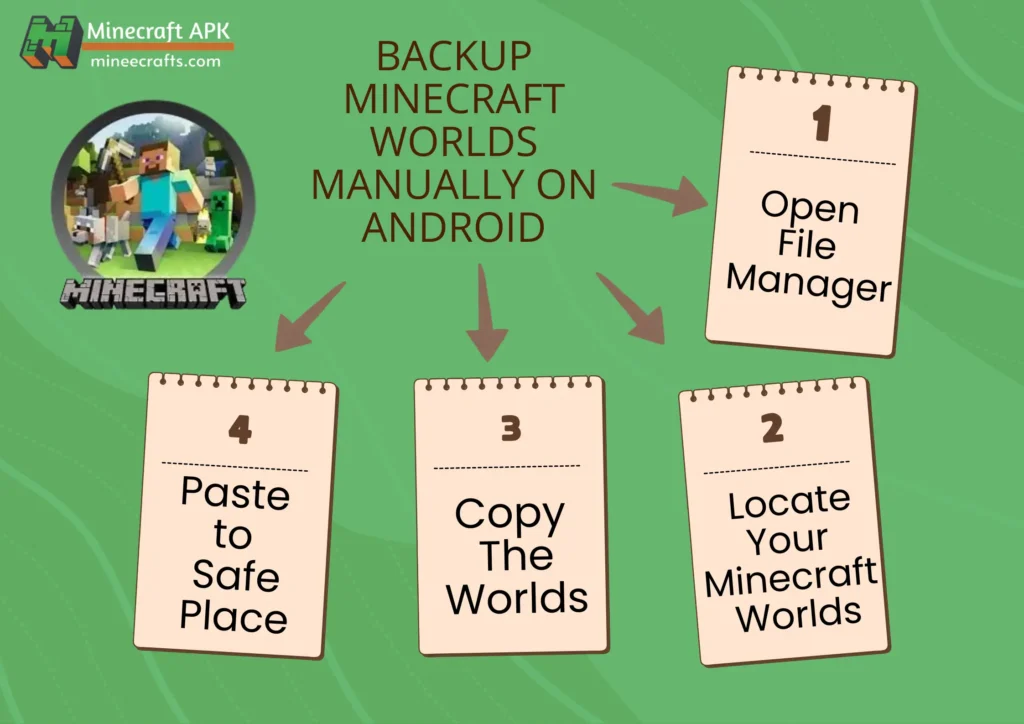
The most reliable and manual way to back up your Minecraft worlds on Android:
Manual Backup Steps:
- To locate the world file, open your phone’s File Manager or File app.
- Navigate to: Internal Storage > games > com.mojang > minecraftWorlds
- To create a backup, long-press the Minecraft Worlds folder and copy the entire folder.
- Paste it to a safe location:
- SD Card
- Google Drive / Dropbox
- USB storage
- PC/Laptop
☁️ Cloud Backup (Google Drive or Dropbox):
Cloud storage is great for peace of mind:
- Compress the world folder into a ZIP file.
- Open Google Drive or Dropbox.
- Upload the ZIP file.
- Name it clearly (e.g., MinecraftBackup_July2025.zip).
Cloud backups make it easy to restore from anywhere—even if your device breaks.
This ensures your worlds are preserved even if the app data is lost.
Key folders to back up:
minecraftWorlds→ your saved worldsresource_packs→ custom visualsbehavior_packs→ custom mod files
Using Backup Apps (Automated)
If manual backups seem difficult, you can use third-party apps that automate the backup process:
- Helium Backup: This app works well on older Android devices.
- Titanium Backup: This is a powerful option for rooted devices.
- Google Drive Backup: This is also used for the backup process.
How to use backup apps:
- Download and install the backup app from a trusted source.
- Allow all necessary permissions (e.g., install from unknown source, storage).
- After installation, to create a backup, find Minecraft APK in the app list.
- Choose a location for the backup and start the process.
⚠️ Be careful using third-party apps—only use reputable ones.
Backup Minecraft Worlds Using Your PC
This method stores a local backup outside your phone:
- First of all, connect your phone to your PC via USB.
- Enable File Transfer (MTP) on the phone.
- Open the phone storage on your computer.
- Locate the Minecraft world folder.
- To create a backup Copy all the folders having Minecraft World files
- Paste it into a safe folder on your PC.
Backing Up Your Minecraft APK File
If you want to save the same game version and custom settings before updates or mod testing, this backup is especially useful. For this, follow these steps:
- Install a trusted APK extractor app (e.g., ML Manager, APK Extractor, or ZArchiver).
- Open the app and find Minecraft APK in the installed apps list.
- Select Extract / Save APK.
- Move the extracted APK to a USB drive or SD card, cloud storage, or PC or laptop.
- To remember the version and identification, rename the APK file. For example, Minecraft_v1.21_backup.apk.
How to Restore Minecraft APK Backup?
Restore Worlds:
Follow these steps if you want to restore your world from backup:
- Reinstall Minecraft APK (if needed).
- If you want to restore from a PC or laptop, connect your phone to it.
- Open File Manager and look for the folder where you saved the Minecraft backup files.
- Locate and open the Minecraft Worlds folder from your storage.
- To recover Copy your required world folders and paste them into the Minecraft Worlds folder.
- Now, open the Minecraft game, and your worlds will be available.
Backup Tips
👉 You should create a backup before every major update.
👉 Create multiple backups: local and cloud.
👉 You should label backups with dates (e.g., Before Nether Update).
👉 You should test a restore once to ensure backups work.
👉 You should rename the worlds for easy identification.
These help avoid confusion and ensure your files are always usable.
Final Conclusion
Players who value their progress and creativity should make regular backups of their Minecraft APK accounts and worlds. In this guide, all the methods, like manual world backups to cloud storage and APK file saves, ensure that nothing gets lost. There is no matter what happens to your device or game files.
You can play with confidence and explore freely with a reliable backup system. And you never need to worry about losing your Minecraft achievements again.
Frequently Asked Questions (FAQs)
Q: Can uninstalling the Minecraft APK delete my worlds?
Yes, if you haven’t backed them up, uninstalling will erase local world data.
Q: How often should I back up?
You should back up weekly for solo worlds, before installs/updates, and daily for multiplayer or modded gameplay.
Q: Is cloud backup safe?
Yes, as long as the service (Google Drive, Dropbox) is secure and your account is protected.
Q: Does the Microsoft account sync backup worlds?
No, Microsoft sign-in only syncs purchases and profile data, not local world files.