How to Make a Minecraft Server—Complete Guide [2026]
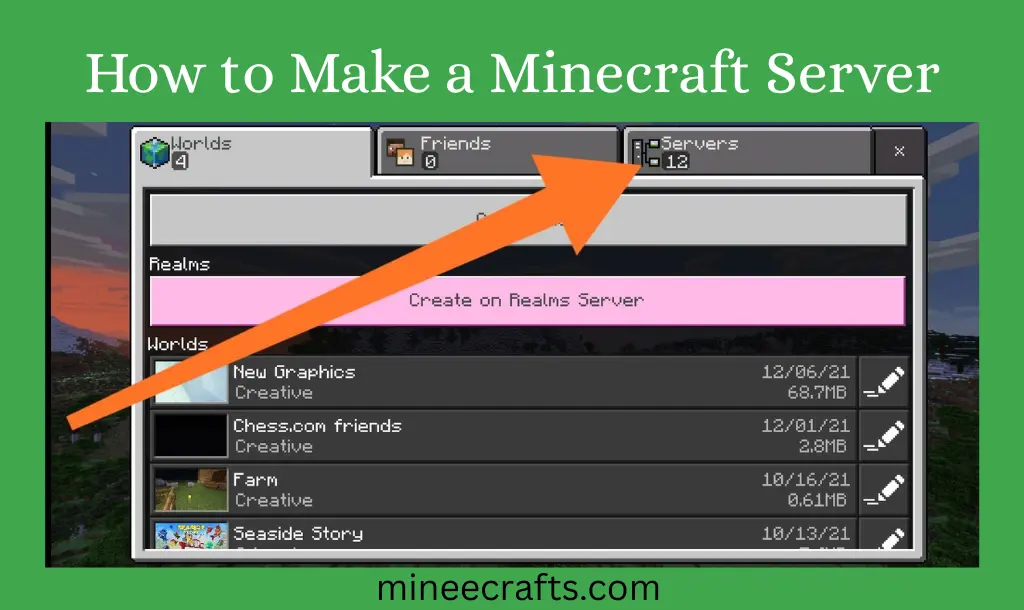
Creating your own Minecraft server allows you to play with friends, customize the gameplay, install mods or plugins, and have complete control over your Minecraft world. This guide will walk you through the process of creating a private survival server, a creative build server, or a public multiplayer server.
What is a Minecraft Server?
A Minecraft server is a multiplayer environment where multiple players can connect and play in the same world. You can play with family, friends, or other players to keep your world active. Anyone can join the game from any location. Servers can be hosted on your own computer, on a hosting service, or on a local network (LAN). Running your own server allows you complete control over the rules, players, mods, and game modes. In terms of Minecraft servers, Minecraft Java has more features than any other Minecraft edition.
Requirements to Make a Minecraft Server
Before starting, make sure you have:
|
Requirement |
Details |
|---|---|
|
Minecraft Java Edition |
Required for custom servers |
|
Computer |
Windows, macOS, or Linux |
|
Java Installed |
Java 17+ recommended |
|
Stable Internet |
For online multiplayer |
|
RAM |
Minimum 2GB (4GB recommended) |
|
Basic knowledge |
command prompt (CMD) |
How to Create a Minecraft Server?
Step 1: Install Java on Your Computer
Step 2: Download the Minecraft Server File
Step 3: Run the Server for the First Time
Step 4: Accept the Minecraft EULA
Step 5: Run Server Again
Step 6: Configure Server Settings (server.properties)
|
Setting Lines |
Description |
|---|---|
|
gamemode=survival |
survival/creative or adventure |
|
difficulty=normal |
peaceful/easy/normal/hard |
|
max-players=10 |
Maximum players allowed |
|
online-mode=true |
true |
|
level-name=world |
Any name, according to your choice |
|
pvp=true |
false to disable. |
|
motd= Welcome to my server |
Write the welcome message you want. |
Firewall Access
Port Forwarding Settings
Port forwarding configurations enable players from other networks (not LAN) to join your server. If you do not enable port forwarding, only players who share the same WiFi network with you will be able to join your server.
Port forwarding settings can be set using the following commands:
|
Field |
Recommended Entry |
|
Service Name |
Minecraft Server |
|
Port Range |
25565 |
|
Local IP Address |
Your IPv4 address |
|
Local Port |
25565 |
|
Protocol |
TCP/UDP |
|
Status |
enabled |
How to Join a Server in Minecraft?
Common Problems & Fixes
Conclusion
One of the best ways to enjoy multiplayer gameplay with complete control is to set up a Minecraft server. With the proper setup, you can host a stable server, invite friends, customize settings, and even add mods or plugins. While it may appear complicated at first, following this step-by-step guide makes the process simple—even for beginners.