How to Install Texture Packs in Minecraft (2026 Complete Guide)
Install Texture Pack in Minecraft

Minecraft is a classic block game with fantastic graphics. Each update improves the game’s visuals. However, the Texture packs are a great way to customize and improve your Minecraft experience. They enable players to change the game’s visuals.

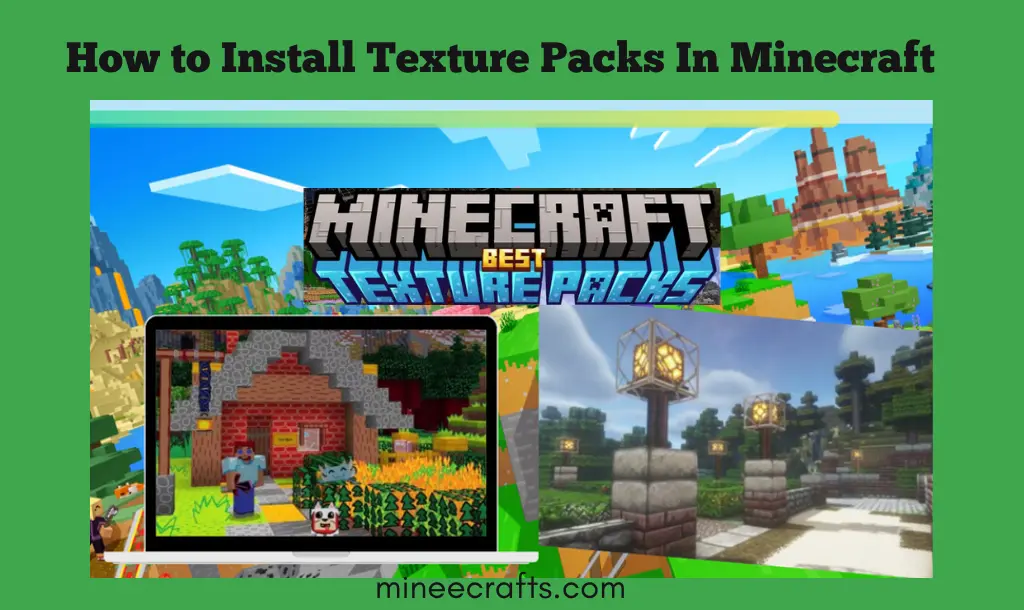
Texture packs (now officially known as Resource Packs) are files that change the appearance of Minecraft’s graphics. They have the ability to change the appearance of blocks, tools, mobs, and menus while maintaining the core gameplay. This article will provide you with a step-by-step guide to installing texture packs in Minecraft.

Importance of Texture Packs in Minecraft

Texture packs are important and popular because they improve the visuals of the game. They add realism or cartoon-style graphics, customize the game’s appearance, and work without mods.

Unlike shaders, which change lighting and effects, texture/resource packs only change the visuals and do not affect gameplay.

Download & Install Texture Packs in Minecraft


Create Folder:

  • Before you begin downloading Texture Packs, create a folder with the name you want for the texture pack.

Download Texture Pack:

Follow these steps to download the Texture Pack:

  • Download the texture pack file from a trusted website.
  • If you don’t find one, you can get it from the Minecraft marketplace.
  • Before downloading the texture pack, ensure that your device is compatible with the chosen Texture Pack. 

Tip: Select packs that are compatible with your Minecraft version, as packs for older versions may not work properly.

Extract the Texture Pack:

  • After downloading the Texture Pack, you will receive a .zip file on your device.
  • Use the extract here command or WinRAR to extract the file.
  • After extraction, you will have a folder with multiple files; copy this to the Texture Resource Pack folder you created.

Activate and Install Texture Pack:

The last and most important step is to install the Texture Pack in Minecraft.

  • Open Minecraft and select the Menu option.
  • Click on the Resource Pack option.
  • To install the pack, select it and click the Done button.
  • The game will be updated automatically.

Download & Install Texture Packs for Windows

By following these steps, you can easily install the Texture Packs for Minecraft on your PC for Windows:

  • Get the texture pack from trusted sources, such as Curseforge or Planet Minecraft.
  • Open the Minecraft launcher.
  • From the main menu, click Resource Pack Option.
  • Click Open Pack Folder and then paste the downloaded .zip file inside the folder.
  • Return to Minecraft, and your pack will appear in the list.
  • To make it “selected,” click the ➡️ arrow.
  • Select Done and enjoy your new visuals.

Tip: Do NOT unzip the file before placing it, as Minecraft reads ZIP packs directly.

Recommended Texture Packs

Faithful

Classic enhanced visuals

Sphax PureBDCraft

Cartoon/stylized

John Smith Legacy

Medieval realism

Soartex Fanver

Smooth, detailed textures

Clarity

Clean, balanced

LB Photo Realism

Ultra realistic (heavy)

Default 3D

models 3D, enhanced details

DokuCraft

fantasy elements, vibrant colors 

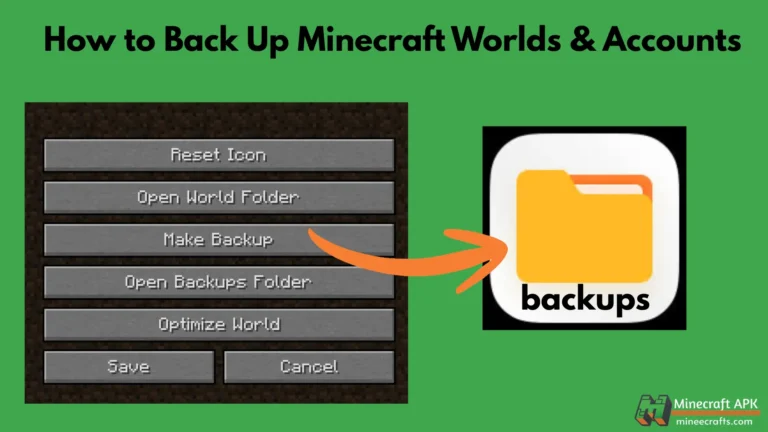
Tip: Before adding texture packs to the game, create a Minecraft backup.

Pros and Cons of Texture Packs in Minecraft

Pros

  • Improved visuals and graphics lead to increased user engagement.
  • It improves the distinctive gameplay experience.
  • These packs improve your Minecraft creativity.
  • Without mods, it offers players a personalized experience and complete customization.

Cons

  • Sometimes, the Texture packs can affect game performance.
  • Some texture packs only work with specific Minecraft versions.
  • New players may experience difficulties while installing and activating the Texture packs.
  • High-resolution texture packs may cause lag or crashes on older phones or PCs.

Common Texture Pack Problems & Solutions

If the texture pack is not showing, check your version compatibility, ensure correct folder placement, or restart Minecraft.

If the game crashes, the pack may be outdated. Try a lower resolution pack or update your pack.

Ending Thoughts

Installing texture packs in Minecraft is a simple and effective way to customize the visuals of your game on PC, mobile, and console. You can transform your Minecraft world while maintaining smooth and enjoyable gameplay by using the proper installation method and compatible packs.

Installing texture packs (resource packs) in Minecraft can significantly improve your creative experience. Texture packs are easy to install once you understand where to save the files and how to activate them in-game.

Happy building!
FAQs-Frequently Ask Question

Yes, texture packs are safe and free to use if you get them from reputable websites. Make sure that the pack is compatible with your Minecraft version.

Yes, the Minecraft Mod Versionis compatible with the texture packs.

Yes, texture packs can be installed on any platform; however, to enjoy your game on any platform, carefully follow the installation instructions.

In older versions, they were called texture packs because they can only change the blocks and items. They are now known as resource packs in newer versions because they can include more than textures, like sounds and models.

Similar Posts