Best Graphic Settings for Minecraft 2026: Fix Lag & Boost FPS!
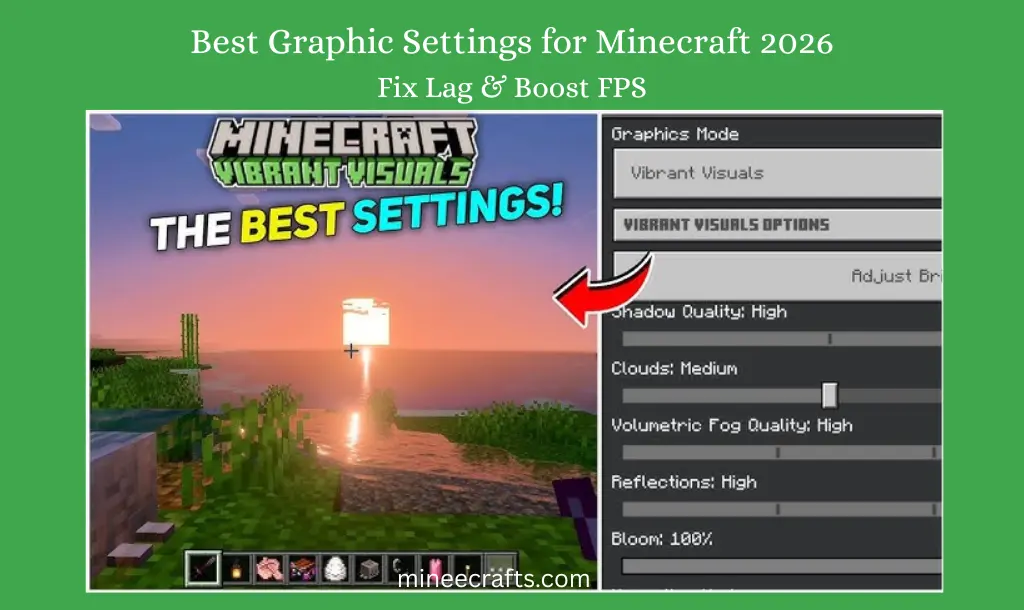
Nothing is worse than battling a Wither or exploring a lush cave seed when your game lags and freezes. In 2026, Minecraft will require more from your hardware. Higher resolution textures and complex shaders will make it more demanding.
Whether you use the official version or the [Mobile APK], these 10 graphic settings for Minecraft can boost your FPS to over 60. Let’s optimize your game for peak performance!
Why FPS Drops in Minecraft
Lag and low FPS can be really frustrating in Minecraft. This is especially true if you’re using a low-end PC or a mobile device. Even a powerful system can struggle if the settings are not optimized correctly. FPS (frames per second) drops due to high render distance, heavy graphics settings, background apps, and weak hardware.
I remember when my game lagged all the time. It had stuttering, slow movement, and delayed actions. After I changed a few graphic settings for Minecraft, my FPS shot up, and the gameplay felt smooth.
Best Graphic Settings for Minecraft to Boost FPS
The best graphic settings for Minecraft that boost your FPS are given below:
1. Reduce Render Distance
Render distance determines how many “chunks” the game loads around you. The biggest FPS boost comes from this setting.
- The Setting: If you are lagging, drop this to 8 or 10 chunks.
- The Result: Your CPU will use less power to load faraway trees and mountains. This boosts your speed right away.
2. Turn Off Fancy Graphics
“Fancy” graphics add extra details like translucent leaves and high-quality shadows.
The Strategy: Switch this to “Fast.” Use Fast for smoother gameplay. Fast leads to better FPS. My Experience: On my older Android phone, I switched to “Fast Graphics.” This change boosted my FPS by 15 frames right away. It makes the leaves solid blocks, which is much easier for your phone to render.
3. Disable Smooth Lighting
Smooth lighting adds realistic shadows between blocks, but it calculates light levels constantly.
- The Fix: Turn this off or to the minimum. Adds lighting effects and disables them to gain FPS.
- Pro Tip: If you have a dark base, use more lanterns. This will help keep things visible without relying on bright lights
4. Set Framerate to Unlimited
Many players accidentally “cap” their framerate at 30 or 60.
The Setting: Set Max Framerate to Unlimited. This lets your device use all its power. So, even during big explosions, the game remains playable.
5. Turn Off Beautiful Skies and Clouds
While the clouds look nice, they are constant 3D objects being rendered in the sky. Clouds add unnecessary load. Turning them off improves performance instantly.
- The Setting: Disabled Clouds, Beautiful Skies, and Smooth Sky.
- The Result: This is especially helpful if you are building a water house or a high-altitude base.
6. Lower Simulation Distance
In 2026, “Simulation Distance” is different from Render Distance. It controls how far away mobs move and how crops grow.
- The Fix: Set this to 4 chunks. This stops the game from processing distant [automatic farms] you aren’t viewing. It saves a lot of RAM.
7. Adjust GUI Scale
If your buttons and menus are too large, it can actually slow down the rendering of the game world behind the menu.
- The Setting: Set GUI Scale to -1 or -2.
- Result: It not only looks cleaner but also gives your device more “room to breathe” when navigating chests or your inventory.
8. Turn Off Screen Bobbing
This is the movement your camera makes when you walk.
- The Setting: Turn off. It may not increase FPS a lot, but it greatly cuts down on “motion sickness.” This change makes the game feel “snappier” and more responsive on mobile devices.
9. My Experience: Managing Entity Lag
I once built a massive iron farm with 50 villagers and 20 golems. My game started running at 5 FPS!
- The Lesson: Too many mobs (entities) in one area causes “entity lag.”
- The Fix: In your settings, turn particles to “Decreased” or “Minimal.” This reduces the smoke and sparkle effects that mobs produce. This cleanup helps clear your screen and also lowers lag. Set to minimal for better performance.
10. Disable V-Sync and Use Lower Resolution
V-Sync limits FPS. Turn it off for higher FPS (if screen tearing is not an issue). Lower resolution can also improve the performance. It is especially useful for low-end PCs. Moreover, setting animations to minimal can also boost FPS.
Optimization Comparison Table (Before vs. After)
Setting | High-End (Quality) | Low-End (Performance) | FPS Impact |
|---|---|---|---|
Render Distance | 16+ Chunks | 6-8 Chunks | High |
Graphics | Fancy | Fast | Medium |
Clouds | ON | OFF | Low |
Particles | All | Decreased | Medium |
Simulation Distance | 10 Chunks | 4 Chunks | Very High |
Best Settings for Low-End Devices
This gives maximum FPS. Use:
Common Mistakes:
Conclusion
You don’t need a $2,000 computer to enjoy Minecraft in 2026. Optimize your Minecraft graphics settings. This easy step improves performance. It makes gameplay smoother on almost any device. You can boost your FPS by lowering visual effects and adjusting key settings. Focus on render distance, lighting, fast graphics, and simulation distance.
From my experience, even small changes can lead to big improvements. The key is to balance visuals and performance based on your system. Once optimized, Minecraft becomes much more enjoyable and responsive.